

In the previous post, we looked at what a view model actually is: a UI backing layer that owns UI state and is responsible for mutating that state properly and consistently.
That’s a powerful tool. But it’s also an extra file and an extra layer of abstraction. So the question isn’t “should I always use a view model?” The question is: when do the benefits outweigh the cost?
In this post, I’ll walk you through four examples. I’ll show simple and complex versions so you can see exactly where a view model starts to make sense and where it becomes an overblown, unnecessary thing that gets in your way.
The Cost and the Benefit of View Model in MVVM
Before we get into the examples, let’s be clear about what we’re weighing.
The cost of a view model:
- Another file and another type to maintain
- Your code is spread over two places
- To find out what a view shows, you sometimes have to jump to another file
- More objects for SwiftUI to manage
The benefit of a view model:
- Views stay simple and focused on UI
- State mutations live in one place and happen the same way every time
- Several views can share the same state and the same methods to change it
- State can outlive a single view
If a view model doesn’t deliver any of those benefits, you’re only paying the cost. Let’s see what that looks like in practice.
Example 1: From a Color Picker to a Theme Editor
The Simple Version
The first example is a simple document app. Each document is a short text snippet with its own color, and when you open a document, that color is used for the background. At the bottom, there’s a color picker for switching between colors.
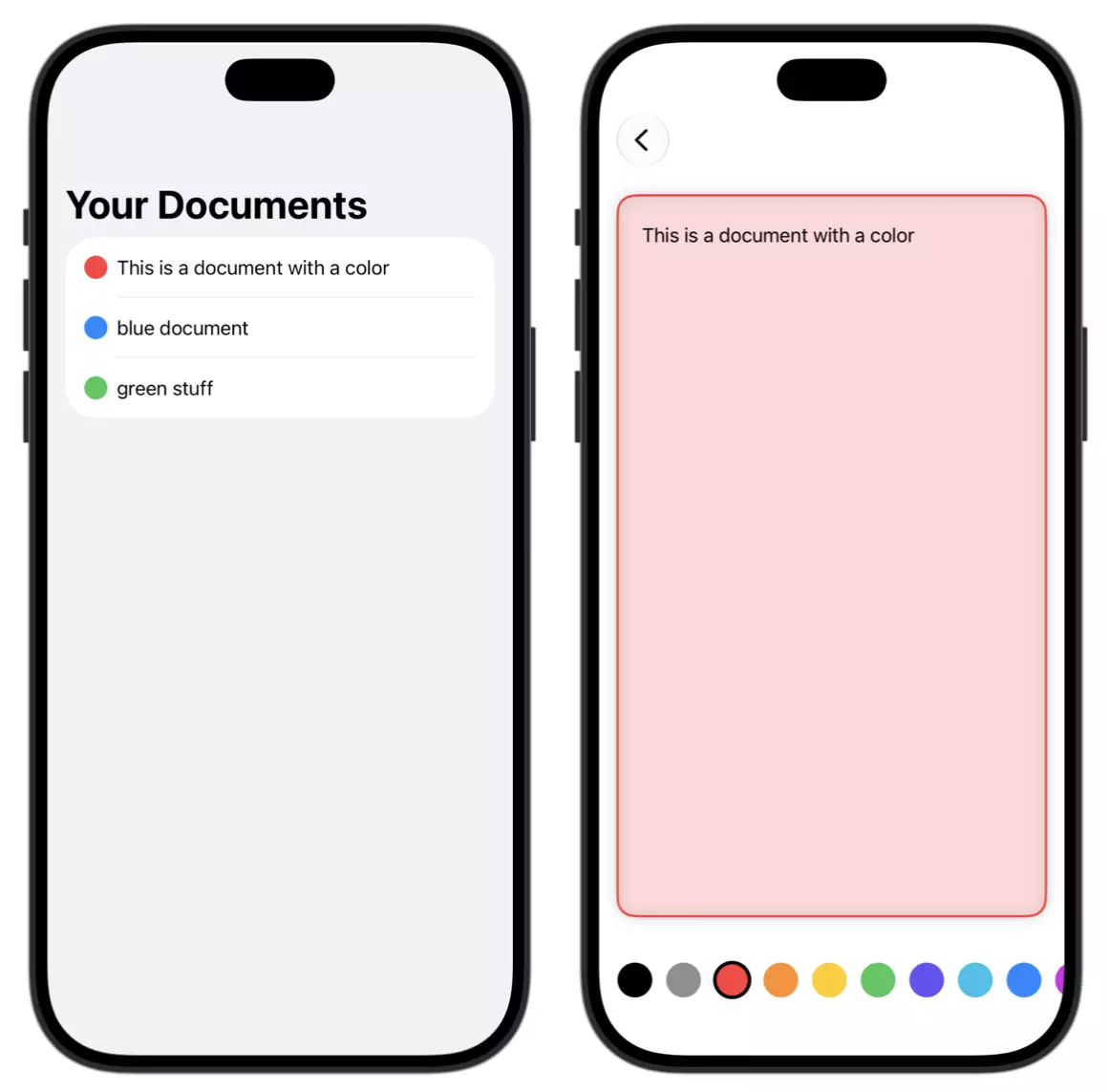
Say you’re building an early MVP and want to keep things easy. You might just hardcode the available colors:
struct ColorPickerView: View {
    @Binding var selectedColor: Color

    let colors: [Color] = [.red, .orange, .yellow, .green, .blue, .purple]

    var body: some View {
        ScrollView(.horizontal, showsIndicators: false) {
            HStack {
                ForEach(colors, id: .self) { color in
                    Circle()
                        .fill(color)
                        .frame(width: 32, height: 32)
                        .onTapGesture { selectedColor = color }
                }
            }
        }
    }
}The view has an array of colors and a horizontal scroll view that iterates over them. Tap a color, and it becomes the selected color through the binding. This view is almost entirely UI. There’s no logic here.
So what would a view model look like? The only thing we could move into it is the array of colors:
@Observable
class ColorPickerStore {
    let colors: [Color] = [.red, .orange, .yellow, .green, .blue, .purple]
}That’s it: an observable class holding a hardcoded array. It doesn’t own any state that changes, and it doesn’t take any work off the view. It just adds an extra layer and splits the code across two files. This is definitely overkill. I would stick with the view-only solution here.
When the Requirements Change
Now let’s keep working on the app. Instead of using color just for the background, I want to render Markdown, with colors for the headings, the code blocks, and the document background. I also want users to create their own themes with custom colors and fonts, and those themes need to be saved to disk and loaded again the next time.
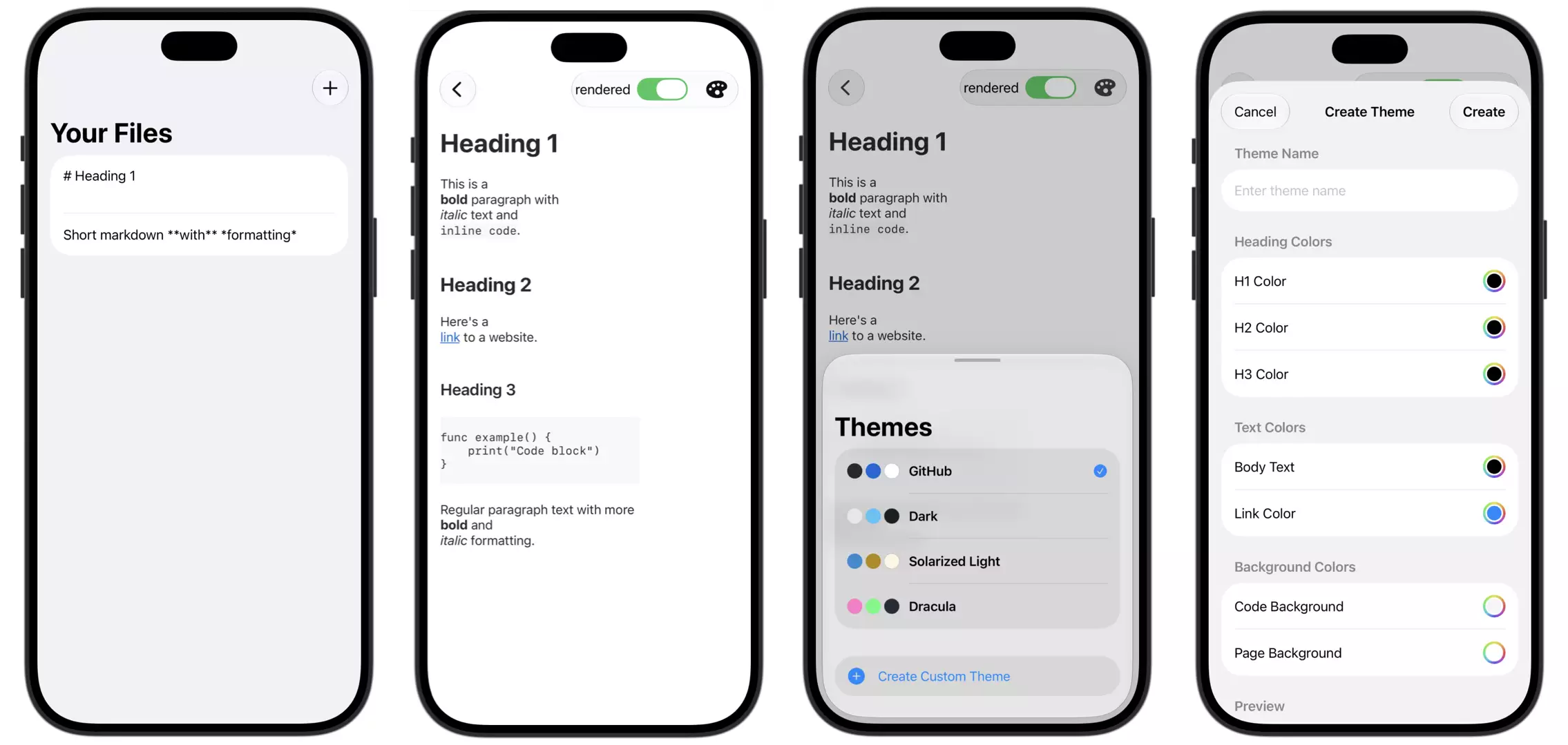
The theme picker view itself still doesn’t have much logic. It’s mostly UI code: show this list, show this button, use this styling. The real work happens in a store (aka the view model):
@MainActor
@Observable
final class ThemeStore {
    private(set) var themes: [Theme] = []
    private(set) var selectedThemeID: Theme.ID?

    var selectedTheme: Theme? {
        themes.first { $0.id == selectedThemeID }
    }

    private let fileService: ThemeFileService

    init(fileService: ThemeFileService = ThemeFileService()) {
        self.fileService = fileService
    }

    func loadThemes() async {
        themes = (try? await fileService.load()) ?? Theme.defaults
    }

    func createTheme(name: String, colors: ThemeColors) async {
        let theme = Theme(name: name, colors: colors)
        themes.append(theme)
        selectedThemeID = theme.id
        await save()
    }

    func deleteTheme(_ theme: Theme) async {
        themes.removeAll { $0.id == theme.id }
        await save()
    }

    func selectTheme(_ theme: Theme) async {
        selectedThemeID = theme.id
        await save()
    }

    private func save() async {
        try? await fileService.save(themes)
    }
}Now there’s real state to manage: all the themes and which one is selected. And there are real mutations. When I create a theme, it needs to be added, selected, and saved. When I delete one, the UI state has to update and the change has to be saved for next time. Because every mutation goes through the store, each one ends with the same save() call, and nothing gets forgotten.
Notice that the store doesn’t do the file handling itself. Encoding and decoding all the themes into a JSON file in the documents directory is quite a bit of code, and it has nothing to do with UI state. So that work goes to a separate service that runs in the background. That keeps the store small and focused. I cover this layer in more detail in another post about Services and Repositories.
Where the Store Lives
There’s one more reason the store pays off here. The themes are created and managed in the theme picker sheet, but the selected theme is also needed in the view that renders every Markdown file.
If the store lived inside the sheet or the detail view, it would be created and thrown away every time I navigate back and forth, and the themes would have to be reloaded each time. So I place it at the app’s top level, where it lives as long as the themes are needed, and pass it to every view that uses it.
struct ContentView: View {
    // owned high in the view tree,
    // lifes for the duration of the app
    @State private var themeStore = ThemeStore()
    @State private var markdownFileStore = MarkdownFileStore()
    @State private var selectedFile: MarkdownFile? = nil

    var body: some View {
        NavigationSplitView {
            MarkdownFilesListView(markdownFileStore: markdownFileStore,
                                  selection: $selectedFile)
        } detail: {
            if let selectedFile {
                MarkdownDetailView(themeStore: themeStore,
                                   markdown: selectedFile)
            } else {
                PlaceholderView()
            }
        }
        .task {
           await themeStore.load()
           await markdownFileStore.load()
        }
    }
}And because all the logic is in one neat package, I can move it wherever I need it later. If the loading code were scattered across views, every change would mean moving a lot more code around.
Takeaway: same feature, different answer. The simple color picker had nothing to manage. The theme editor has state that changes, mutations that need to happen consistently, and several views that need the same state. That’s exactly when a view model earns its place.
Example 2: The About View
The second example is an About screen. It shows the app name, the version number, and a short “About us” text. These are plain strings that I just need to display.
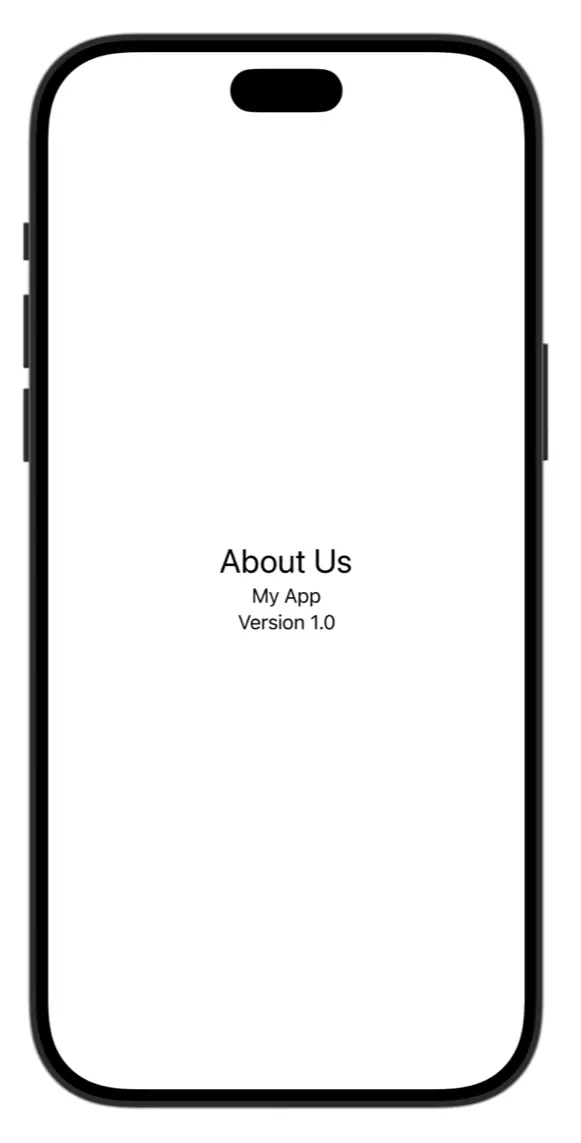
struct AboutView: View {
    let appName = "Markdown Notes"
    let version = "1.2.0"
    let aboutText = "Made with love by a small team."

    var body: some View {
        VStack(spacing: 8) {
            Text(appName).font(.title)
            Text("Version (version)").foregroundStyle(.secondary)
            Text(aboutText)
        }
    }
}Do I need a view model for this? There’s no logic and nothing to do. I could keep these values as properties, like above, or write them straight into the view body. Both are simple enough.
If I introduced a view model, I’d be moving these strings into a separate layer and adding abstraction for no reason. And it actively hurts you. One of the drawbacks of too much abstraction is that you have to jump around in your code. If I want to know what a label shows, I have to go to another type, look it up there, and come back.
There’s also nothing to manage. These are constants. Nothing mutates during runtime, so there’s no reason for a class, and certainly no reason for @Observable.
Takeaway: if nothing changes, there’s nothing for a view model to manage.
Example 3: A Custom Button Component
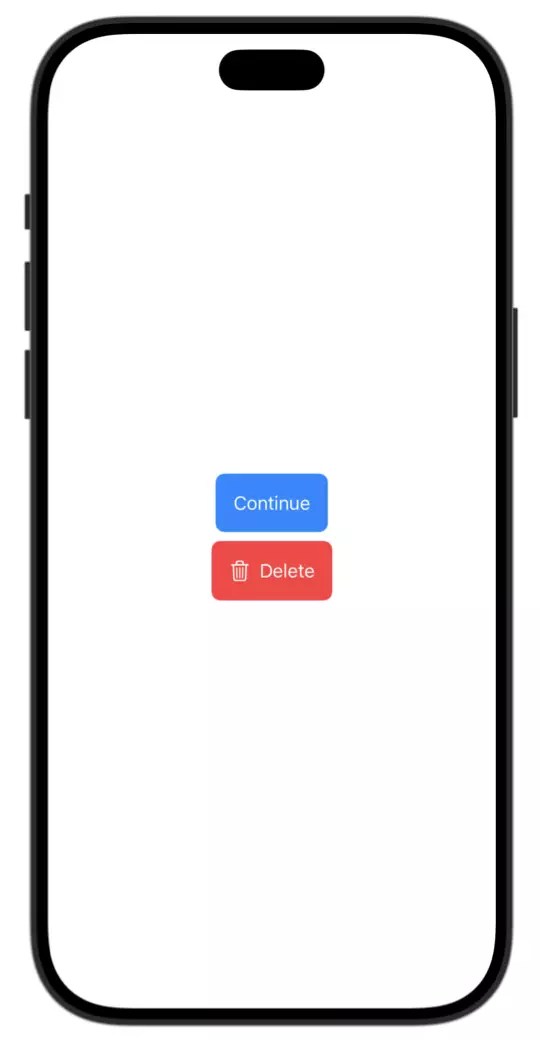
The third example is a reusable button. Teams often want preset configurations for buttons: a trash can icon paired with red, a certain padding, a certain style.
The View Model Version
What happens if you use a view model for this configuration? Every button creates and owns its own view model, with properties for the title, color, icon, and action:
@Observable
class CustomButtonViewModel {
    var title: String
    var color: Color
    var icon: String
    var action: () -> Void
    // ...
}

CustomButton(viewModel: CustomButtonViewModel(
    title: "Delete", color: .red, icon: "trash", action: deleteItem
))This is overkill. There’s no state that changes over time and no logic to manage. I’m just adding another layer with more code.
And it gets worse:
- More work for SwiftUI: every button now has an extra object that has to be allocated and tracked.
- A second source of truth: the button owns its view model, so if you pass a new configuration for the same button, it won’t update.
- More verbose usage: creating a view model just to show a button is a lot of ceremony.
The View-Only Version
Compare that to the simple version, where the button just has normal properties:
CustomButton(title: "Delete", color: .red, icon: "trash", action: deleteItem)This is the simplest, most SwiftUI-like version, and it does pretty much everything you need.
For Design Systems: A Styling Struct
Now, what if you really want the same button with different preset stylings? Maybe you’re working with a strict design system that you built together with a UI designer. One clean way to handle this is a struct that bundles the styling properties together:
struct ButtonStyling {
    let foregroundColor: Color
    let backgroundColor: Color
    let icon: String?
    let font: Font

    init(foregroundColor: Color, backgroundColor: Color,
         icon: String? = nil, font: Font = .body) {
        self.foregroundColor = foregroundColor
        self.backgroundColor = backgroundColor
        self.icon = icon
        self.font = font
    }

    // presets
    static let primary = ButtonStyling(foregroundColor: .white, backgroundColor: .blue)
    static let destructive = ButtonStyling(foregroundColor: .white, backgroundColor: .red, icon: "trash")
}These are all constants, because you pass them in once. The initializer gives you sensible defaults, and static presets cover the common cases. Using it stays just as easy:
CustomButton(title: "Continue", style: .primary) { next() }
CustomButton(title: "Delete", style: .destructive) { deleteItem() }The overhead is small. Instead of passing every property individually, you bundle them into a plain struct.
Takeaway: configuration is not state (that changes during runtime). Reach for plain properties or a struct, not an observable.
Example 4: From Login to Account Creation
The Simple Version
For the last example, let’s say we start with a basic login view: two state properties, two text fields, and a login button. There’s no real logic yet, and the view is very simple. No view model needed. I can keep working on it since it’s still in the early stages of development.
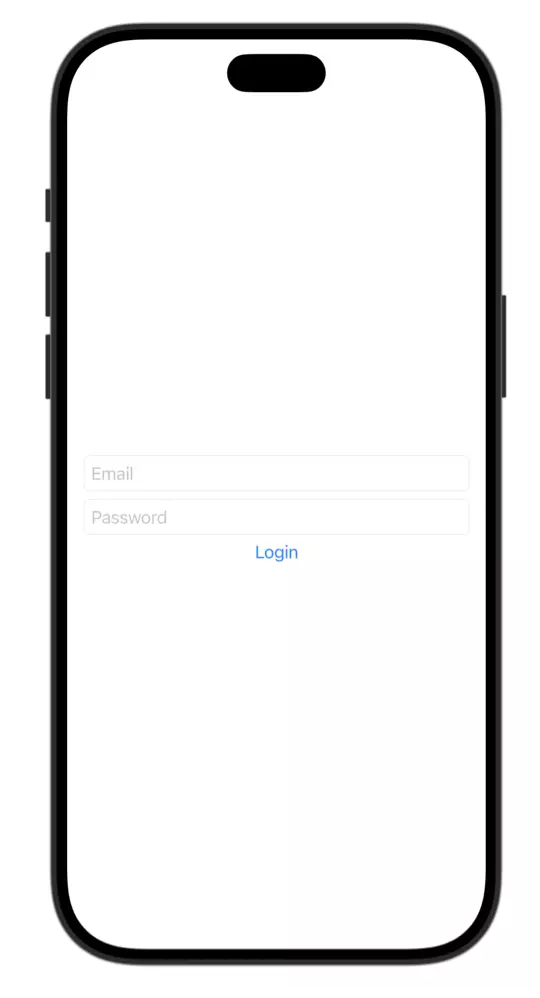
struct LoginView: View {
    @State private var email = ""
    @State private var password = ""

    var body: some View {
        VStack {
            TextField("Email", text: $email)
            SecureField("Password", text: $password)
            Button("Login") {
                if !email.isEmpty && !password.isEmpty {
                    print("Try login...")
                }
            }
        }
        .padding()
        .textFieldStyle(.roundedBorder)
    }
}When the Requirements Change
At some point, you have to add a Create Account feature. Now you need:
- Live validation, showing error messages while the user types their email
- Password strength feedback, with a red, yellow, or green indicator
- Loading states, because pressing Create Account sends an API request. While it’s running, the button has to be disabled so the user can’t create the same account twice. Otherwise the first request succeeds and the second fails with “email already taken.”
- Proper error handling, so the user always knows what’s going on
That’s a lot more logic than the simple login view. Especially once network requests are involved, a small view easily grows and grows until it becomes unmanageable.
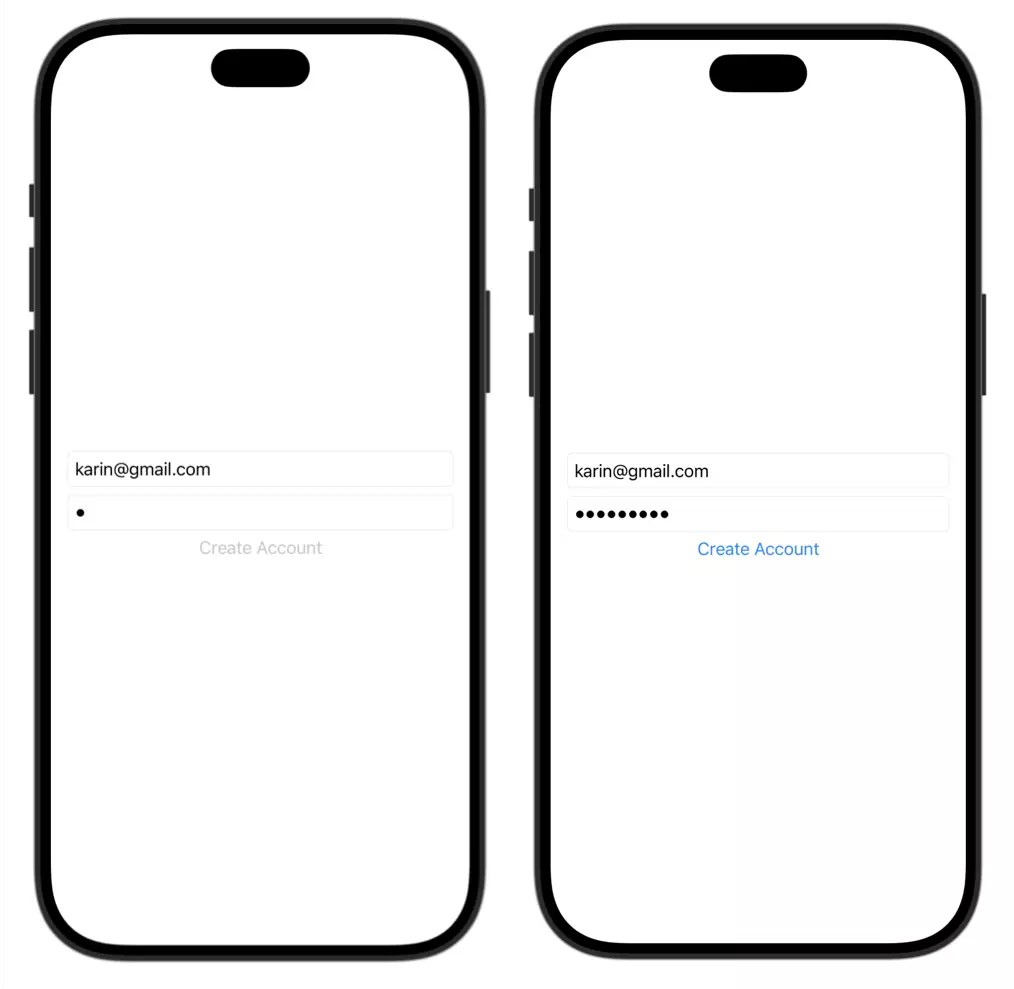
This is where a view model becomes a state engine. It manages all the state and the mutations, so the view can stay simple:
@MainActor
@Observable
final class AuthViewModel {
    var email = ""
    var password = ""
    private(set) var isLoading = false
    private(set) var errorMessage: String?
    private(set) var isLoggedIn = false

    private let authService: AuthService

    init(authService: AuthService = AuthService()) {
        self.authService = authService
    }

    var emailError: String? { /* live email validation */ }
    var passwordStrength: PasswordStrength { /* weak, medium, strong */ }

    var canSubmit: Bool {
        emailError == nil && passwordStrength != .weak && !isLoading
    }

    func createAccount() async {
        await perform { try await self.authService.createAccount(email: self.email, password: self.password) }
    }

    func login() async {
        await perform { try await self.authService.login(email: self.email, password: self.password) }
    }

    // One place that runs every auth request the same way
    private func perform(_ request: () async throws -> Void) async {
        isLoading = true
        errorMessage = nil
        defer { isLoading = false }
        do {
            try await request()
            isLoggedIn = true
        } catch {
            errorMessage = error.localizedDescription
        }
    }
}This is a shortened version. In a real app, the validation alone adds up to a lot more code. But even with all of that, the view stays small. It manages its text fields, builds the button, and calls the view model. Disabling the button is one line using canSubmit.
Sharing State Mutations Across Views
There’s another big advantage once this logic lives in a view model: it’s no longer tied to a single view.
The create account screen isn’t the only place that deals with authentication. I also have a login screen, and maybe a sign-in prompt somewhere else in the app with a completely different look. All of these views work with the same auth state: whether a request is loading, whether there’s an error, whether the user is logged in. And login state is usually something you need app-wide anyway.
Instead of writing that logic again in every view, I can simply pass the view model along and call its methods:
struct LoginView: View {
    @Bindable var auth: AuthViewModel

    var body: some View {
        VStack {
            TextField("Email", text: $auth.email)
            SecureField("Password", text: $auth.password)

            Button("Log In") {
                Task { await auth.login() }
            }
            .disabled(!auth.canSubmit)

            if let error = auth.errorMessage {
                Text(error).foregroundStyle(.red)
            }
        }
    }
}

struct CreateAccountView: View {
    @Bindable var auth: AuthViewModel

    var body: some View {
        // Different layout, same view model
        Button("Create Account") {
            Task { await auth.createAccount() }
        }
        .disabled(!auth.canSubmit)
    }
}Both views look different, but neither of them knows how logging in or creating an account works. They call login() or createAccount(), and the view model takes care of the rest.
This matters because these are complex state mutations. Setting the loading state, clearing old errors, handling a failed request, and updating the logged-in state all have to happen in the right order. If every view did this on its own, I’d end up duplicating very similar code that mutates the same state, and sooner or later one copy would behave slightly differently from the others. With the view model, there’s one place responsible for how the auth state changes, and every view shares those same methods.
This is also why the view model isn’t owned by any one of these screens. It’s owned higher up, where all of them can reach it. I explain this approach in more detail in What Is a View Model in SwiftUI, Really?, under “scope by state, not by screen.”
Takeaway: complex state mutations and state shared across views are exactly what view models are for.
The Pattern Behind the Examples
If you look at the four examples side by side, a pattern shows up. Whenever there was real state to manage and real mutations to get right, the view model paid off. Whenever there wasn’t, it only added cost.
A view model is usually worth it when:
- The view needs real logic: validation, persistence, networking
- State changes over time, and those changes need to be coordinated
- Several views work with the same state and should share the methods that change it
- The state needs to outlive the view that displays it
It’s usually overkill when:
- The view only displays constants or simple values
- You’re configuring a reusable component
- The view model would hold little more than the properties the view already has
Notice that none of these points is about the size of the screen or how important it feels. It all comes back to the definition: a view model owns UI state and is responsible for mutating it properly. If there’s no state to own and no mutations to get right, there’s no job for a view model to do.
Start Simple, Refactor When It Grows
You might have noticed that two of the examples started without a view model and only needed one later. That’s very typical. Most view models aren’t planned up front. They show up when a view starts collecting logic.
So you don’t need to decide on day one. Start with the simplest version that works, and keep an eye out for these signs:
- The view body gets long, and most of it isn’t UI
- State mutations are scattered across subviews, or duplicated in slightly different versions
- It’s getting hard to follow how and when the state changes
- A second view suddenly needs the same state
When you see them, that’s the moment to move the state and its mutations into a view model. I’ll walk through that refactoring step by step in Refactoring to a View Model When Complexity Grows.
Wrapping Up
There’s no solution that fits all. Whether you use a view model in a given situation is really up to you, and it comes down to one question: is this extra layer worth it here?
You don’t have to use one. A view-only solution is often the simplest and best choice. But when your views start collecting state and mutations that need to happen consistently, a view model is a very good tool for managing that complexity.
Once you’ve decided you need one, the next question is what actually belongs inside it. That’s what we’ll look at in What Should Go in a View Model?