

In simple setups — a view behind an if condition, a sheet, a fullscreen cover — onAppear works exactly how you’d expect. Show the view, onAppear fires. Remove it, onDisappear fires. State is gone. Clean and predictable.
Then you use TabView.
You put a data fetch in onAppear on your second tab. On iOS 17, that fetch ran at app launch — even though the user was looking at the first tab. On iOS 18, same code, the fetch didn’t run until someone actually tapped the tab. Apple made TabView lazy. Same code. Different OS. Different behavior.
onAppear has had genuinely unpredictable moments across SwiftUI’s lifetime — firing twice, firing in unexpected order, not firing when you’d swear it should. For an API that every app relies on, that’s a problem.
So I spent time testing it properly, and I want to share what I found — because once you redefine one word, it all makes sense.
The word is “appears.”
This post builds on concepts from The SwiftUI AttributeGraph. If terms like “node,” “identity,” or “graph” are unfamiliar, start there.
View Node Lifetime and Visibility
If you’ve read The SwiftUI AttributeGraph, you know that every view has a node in the graph — a slot that holds its @State, tracks its dependencies, and persists as long as the view’s identity exists in the tree.
In order to understand when onAppear fires we need to look at 2 different concepts:
Node Lifetime
When the node is created in the attribute graph and when it’s destroyed. This happens once per identity. When the node is created, @State gets its initial value. When the node is destroyed, that state is torn down. Gone.
View Visibility
When a view becomes visible on screen and when it stops being visible. This can happen multiple times for the same node. A tab you switch away from disappears but its node can stay alive. A view inside a NavigationStack that gets covered by a push disappears but its node might still exist.
onAppear doesn’t mean “this view was created.” It doesn’t mean “this view is new.” It means “this view just became visible.” And “visible” is doing all the heavy lifting.
@State tracks lifetime. onAppear/onDisappear track visibility. They’re independent systems that sometimes align and sometimes don’t.
| What it tracks | How many times | What it affects | |
|---|---|---|---|
| Node lifetime | Creation/destruction in the graph | Once | lifetime of state (declared with @State, @StateObject) |
| View visibility | Visible/not visible on screen | Multiple times | onAppear, onDisappear, task |
The Simple Case: When onAppear fires with conditional views
Here’s a case where lifetime and visibility happen at the same time, so everything feels intuitive:
struct ParentView: View {
    @State var showChild = true

    var body: some View {
        VStack {
            Toggle("Show Child", isOn: $showChild)
            if showChild {
                ChildView()
            }
        }
    }
}

struct ChildView: View {
    @State var userInput = ""

    var body: some View {
        TextField("Type something", text: $userInput)
            .onAppear { print("onAppear") }
            .onDisappear { print("onDisappear") }
            .task { print("task started") }
    }
}Try this:
- Type something into the text field
- Toggle
showChildtofalse - Toggle it back to
true
Your text is gone.
Here’s what happened:
Toggle off:
- The
ifbranch removesChildViewfrom the view tree - The node is destroyed —
@State userInputis torn down onDisappearfirestaskis cancelled
Toggle on:
- A new node is created —
@State userInputis initialized fresh as"" onAppearfirestaskstarts
One onAppear per lifetime. One onDisappear per lifetime. Lifetime and visibility are the same event. This is the case most tutorials show you, which is why you build the wrong mental model early.
TabView: onAppear fires on every tab switch
struct ContentView: View {
    var body: some View {
        TabView {
            Tab("First", systemImage: "1.circle") {
                FirstTab()
            }
            Tab("Second", systemImage: "2.circle") {
                SecondTab()
            }
        }
    }
}

struct FirstTab: View {
    @State var userInput = ""
    var body: some View {
        Self._printChanges()
        return TextField("Type something", text: $userInput)
            .onAppear { print("FirstTab onAppear") }
            .onDisappear { print("FirstTab onDisappear") }
    }
}

struct SecondTab: View {
    var body: some View {
        Self._printChanges()
        return Text("Second tab")
            .onAppear { print("SecondTab onAppear") }
            .onDisappear { print("SecondTab onDisappear") }
    }
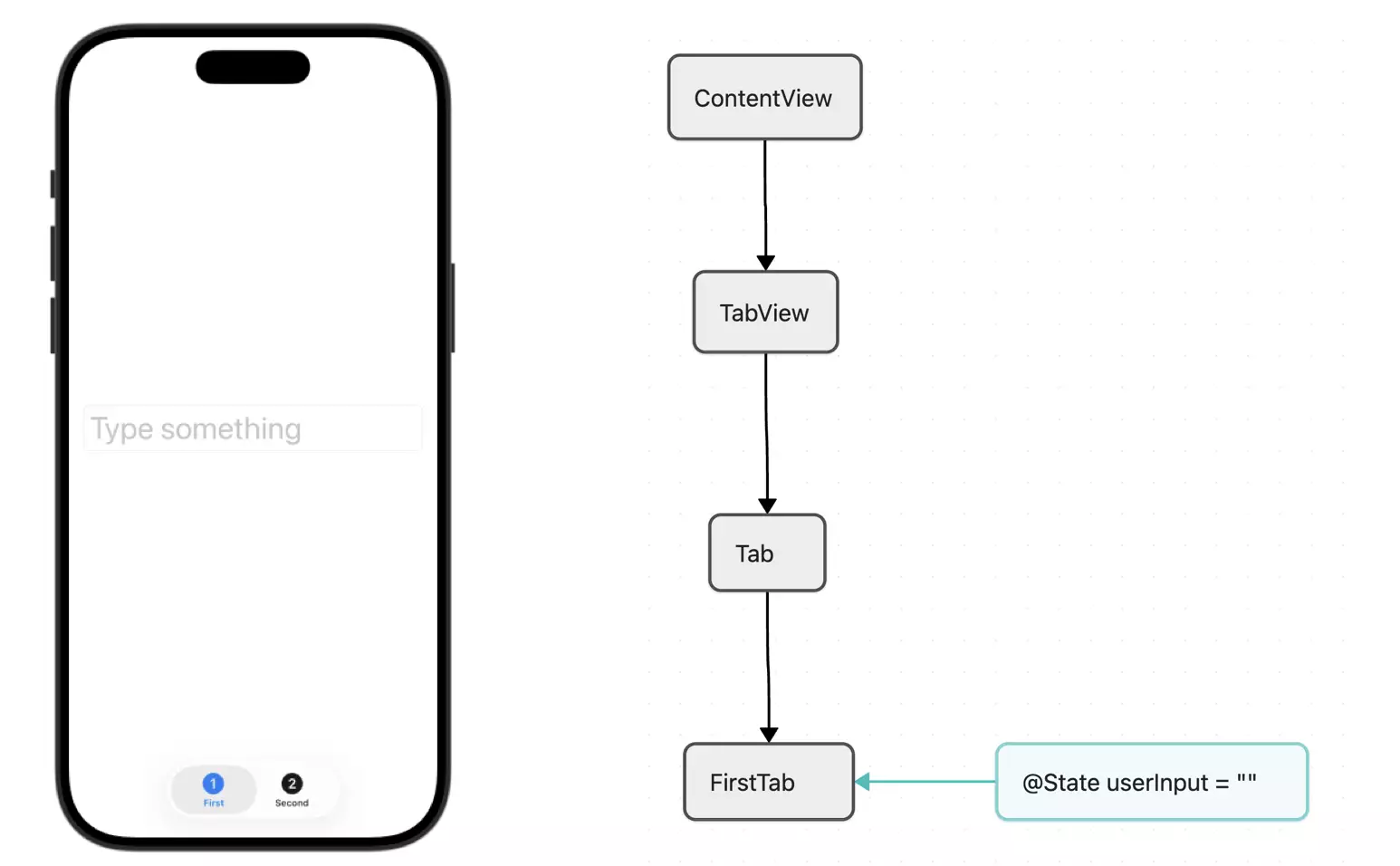
}Run this. Before you tap anything, look at the console:
FirstTab: @self, @identity, _userInput changed.
FirstTab onAppear
That’s it. Only the first tab. SecondTab didn’t print anything — no onAppear, no body call, no node created, nothing. It doesn’t exist yet. TabView only builds a tab when you navigate to it for the first time.
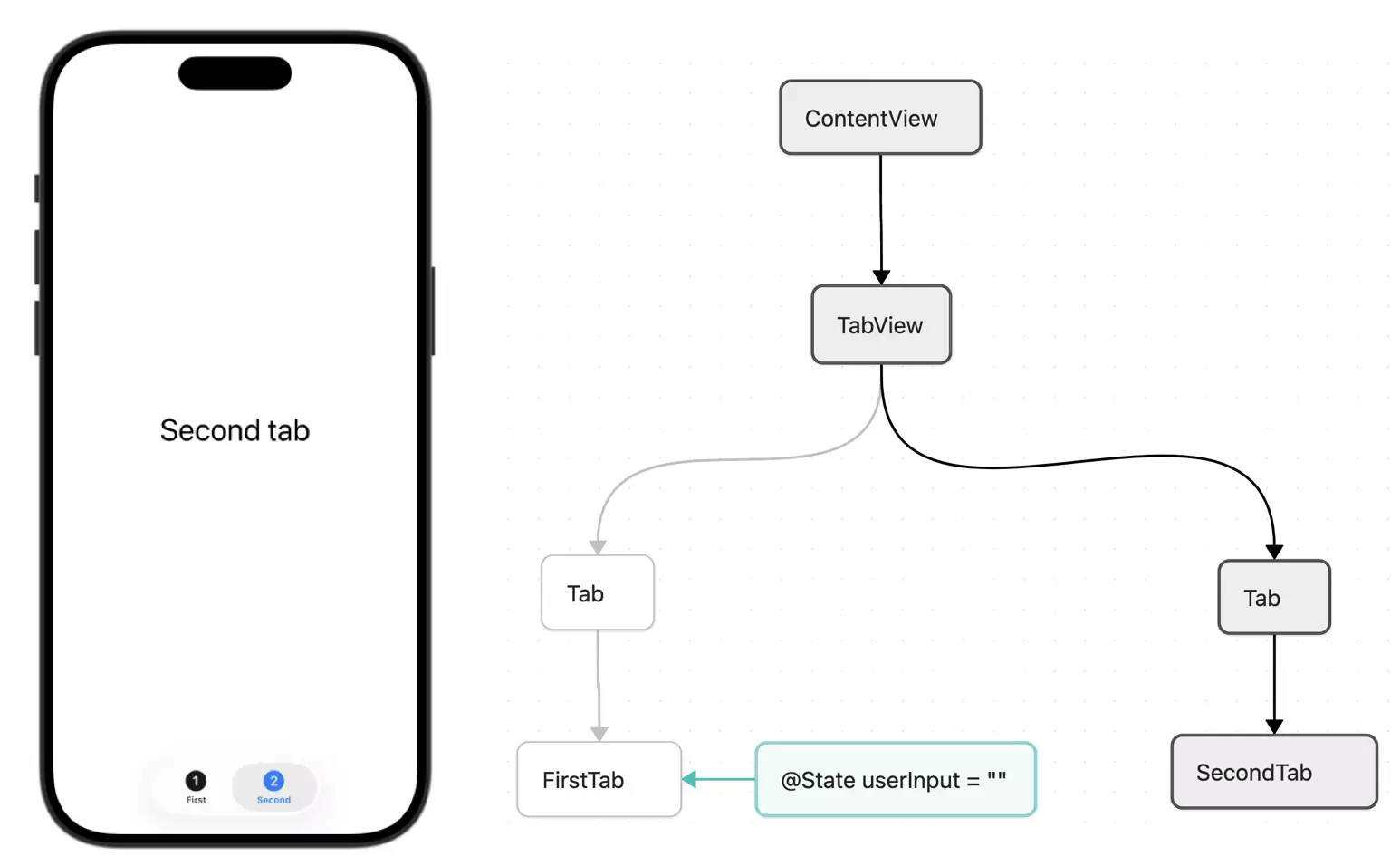
Now tap the second tab:
SecondTab: @self changed.
SecondTab onAppear
FirstTab onDisappearSecondTab‘s node is created now, its body is called. FirstTab disappears — but its node stays alive. I illustrated the visible view nodes in black and the “hidden” views in gray. I am not sure how this is exactly done in the AttributeGraph. I am guessing SwiftUI sets a flag on the nodes during TabView tab switching, which then triggers the onAppear/onDisappear calls that depend on this flag:
Tap back to the first tab:
FirstTab onAppear
SecondTab onDisappear
FirstTab onAppear fires again. But here’s the thing — if you typed something in that text field earlier, it’s still there. The node was never destroyed. onAppear fired because the view became visible again, not because it was recreated.
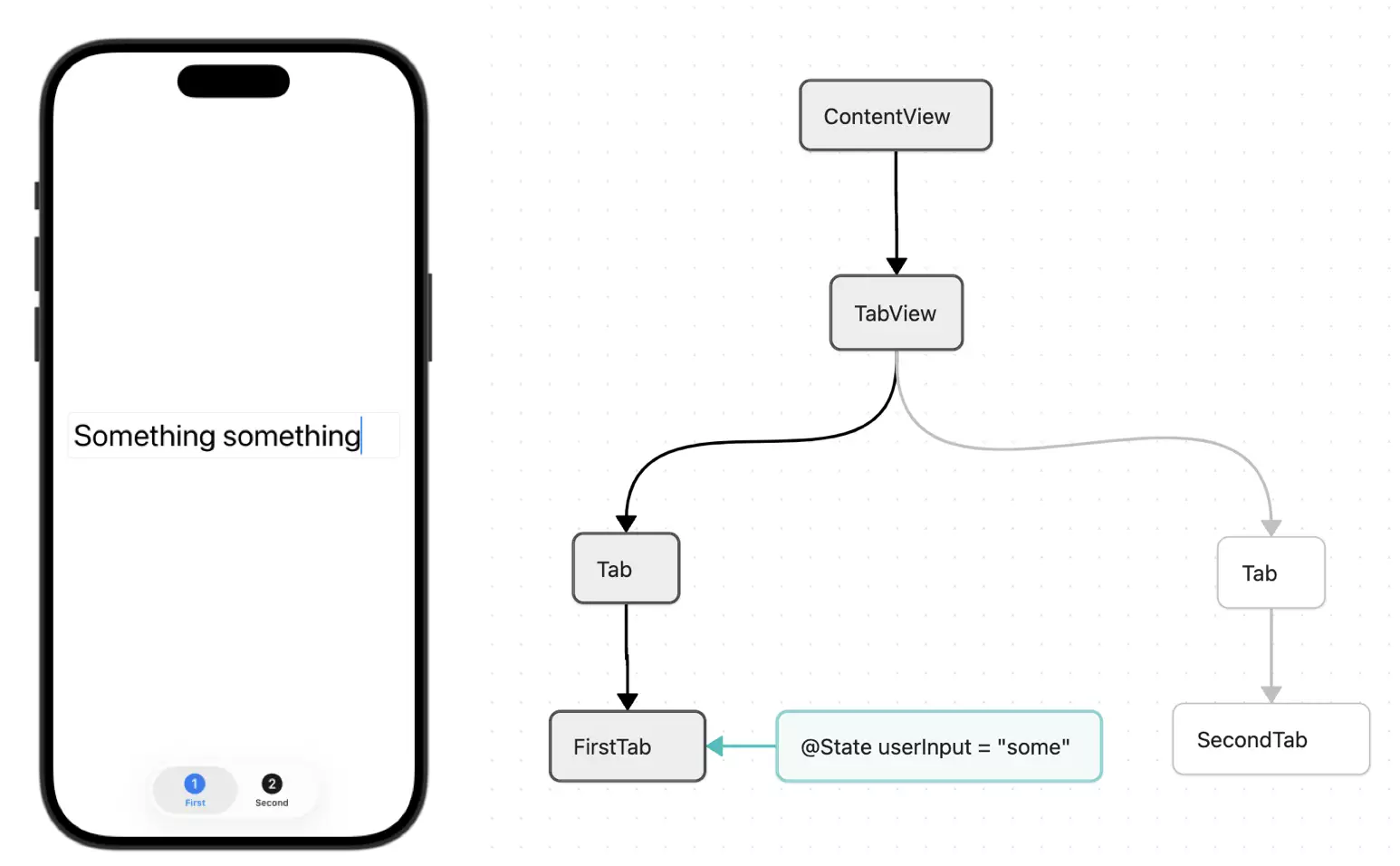
After you’ve visited both tabs, their nodes persist indefinitely. Switching tabs only triggers visibility events. Your @State in both tabs survives.
This is the split in action. onDisappear fired, but the state survived. The node was never destroyed — the view just went off screen. onAppear and onDisappear responded to visibility. @State is tied to lifetime. In TabView, those are completely different timelines.
iOS 17 note: In earlier versions,
TabViewbuilt all tabs eagerly at launch. Your second tab’sonAppearwould fire immediately — even though the user was looking at the first tab. If you had a data fetch inonAppearon a background tab, it ran at app launch. The lazy behavior described above is iOS 18+. Same code, different OS, different behavior. If you’re supporting iOS 17, account for both.
NavigationStack: onAppear fires during push/pop
struct ContentView: View {
    var body: some View {
        NavigationStack {
            RootView()
            .navigationDestination
        }
    }
}

struct RootView: View {
    var body: some View {
        NavigationLink("Go to Detail") {
            DetailView()
        }
        .onAppear { print("RootView onAppear") }
        .onDisappear { print("RootView onDisappear") }
    }
}

struct DetailView: View {
    @State var notes = ""

    var body: some View {
        TextField("Notes", text: $notes)
            .onAppear { print("DetailView onAppear") }
            .onDisappear { print("DetailView onDisappear") }
    }
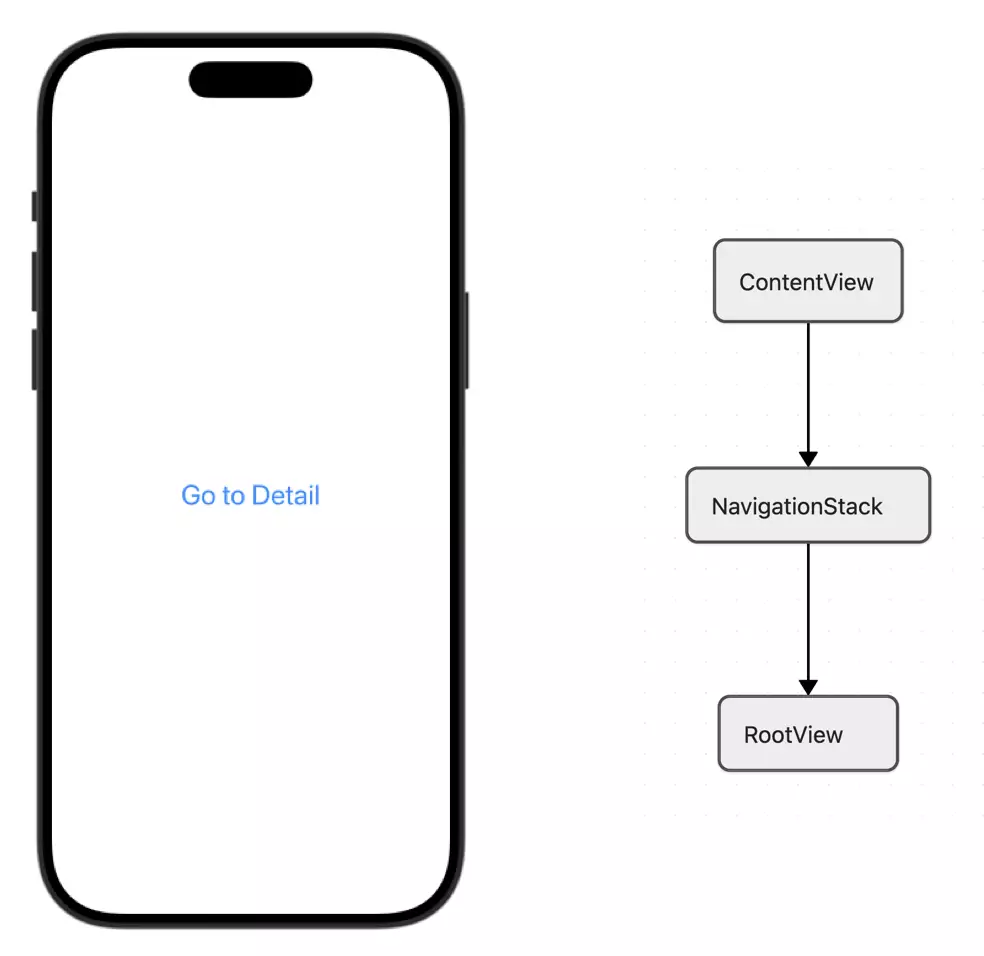
}Initially, you will see the root view. The AttributeGraph builds the view hierarchy for the NavigationStack:
Push to DetailView:
RootView:onDisappearfires, node stays alive but becomes invisible (tagged grayed out in the AttributeGraph)DetailView: node created,onAppearfires
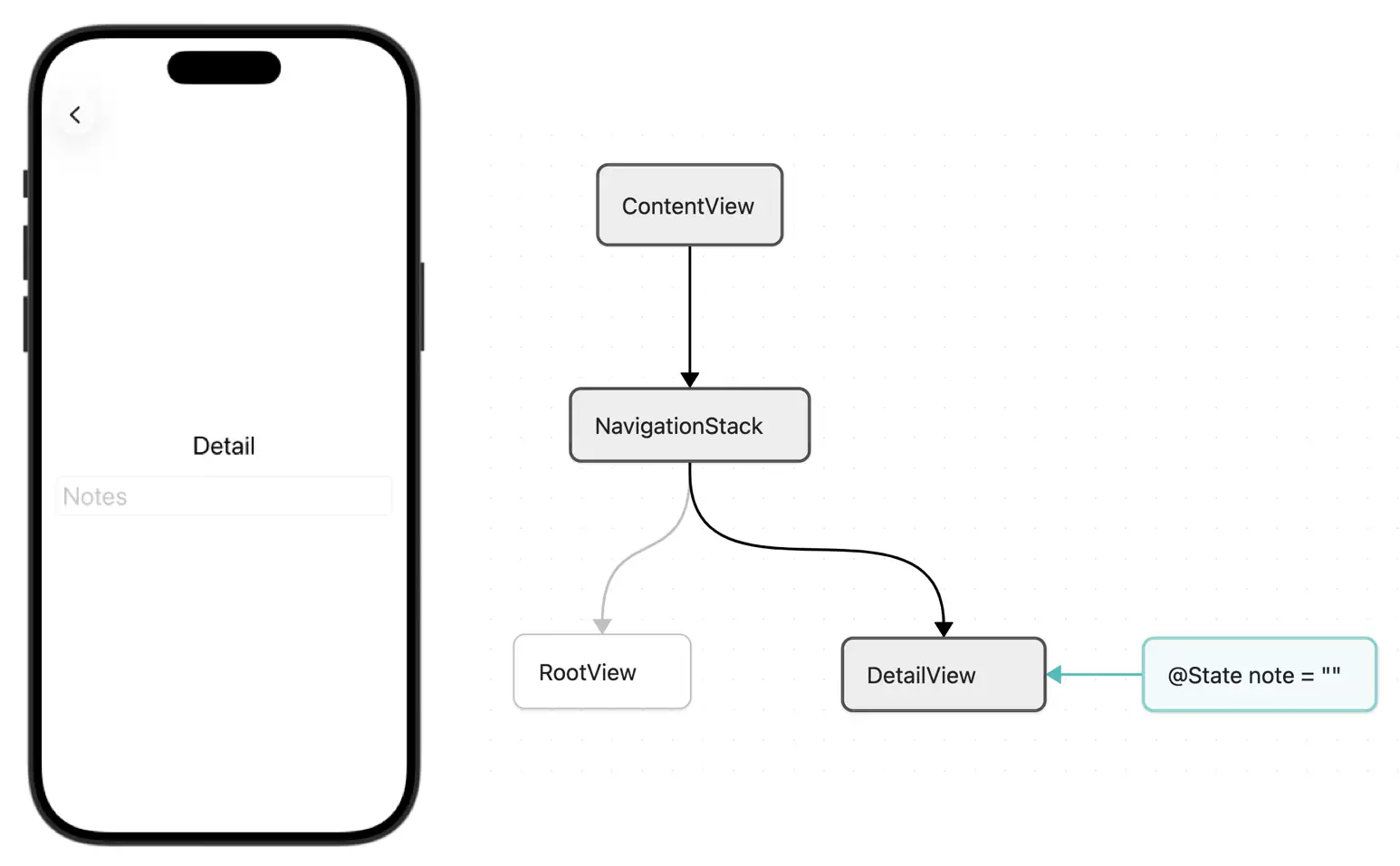
Pop back:
DetailView:onDisappearfires, node is destroyed,@State notesis goneRootView:onAppearfires, node was alive the whole time, state intact
NavigationStack destroys the node when you pop. TabView keeps it. Same onDisappear call, completely different lifetime behavior underneath.
Push to DetailView again? Fresh node. notes starts again with the inital empty String.
List and LazyVStack: onAppear fires during scrolling
struct ContentView: View {
    var body: some View {
        List(0..<1000) { index in
            RowView(index: index)
        }
    }
}

struct RowView: View {
    let index: Int
    @State var isExpanded = false

    var body: some View {
        Text("Row (index)")
            .padding(40)
            .onAppear { print("Row (index) onAppear") }
            .onDisappear { print("Row (index) onDisappear") }
    }
}List is lazy. It only creates nodes for visible rows. As you scroll:
- Rows scrolling into view: node created (or reconnected),
onAppearfires - Rows scrolling out of view:
onDisappearfires, node may be destroyed (SwiftUI decides based on memory pressure and caching)
This means @State inside a List row is unreliable for long-term storage. Scroll far enough away and come back — the node might have been destroyed and recreated. Your isExpanded resets to the initial value false.
Where init Fits (It Doesn’t)
One more thing worth clarifying: init is not a lifecycle event.
Your view struct’s init runs during the render pass — as part of SwiftUI evaluating the parent’s body. SwiftUI might evaluate your struct and decide nothing changed and skip rendering entirely.
First render pass order (during launch):
1. Parent body evaluates
2. Child init runs (struct created)         ← @State is populated with initial values
3. Child body evaluates                     ← @State is read HERE
4. Layout is computed
5. onAppear fires
6. task starts
7. Rendering happens
8. NOW on screen
later, when a state changes, these phases happen:
1. Parent body evaluates
2. Child init runs (struct created)
3. Child body evaluates
4. Layout is computed
5. Rendering happens
6. NOW on screen
You will see that body properties are recomputed and with it init of child views are called. Init calls happen often especially during hot paths (high frequency UI updates e.g. scroll animations). Don’t fetch data in init. Don’t start work in init. It’s not a signal that anything is happening — it’s SwiftUI trying to check for UI updates when state changes.
And here’s a crash that comes directly from misunderstanding this order:
struct ItemListView: View {
    @State var items: [String] = []

    var body: some View {
        Text(items[0]) // 💥 Index out of range
            .onAppear {
                items = ["Apple", "Banana", "Cherry"]
            }
    }
}This crashes. Look at the order above — body runs at step 3. onAppear runs at step 5. By the time onAppear populates the array, body has already tried to access items[0] on an empty array.
The fix is to make your body handle the empty state:
var body: some View {
    if let first = items.first {
        Text(first)
    } else {
        ProgressView()
    }
}Your body must be valid for the initial @State value. Always. onAppear, .task, and any async work all run after body has already been evaluated. If your initial state is an empty array, your body needs to handle an empty array. There’s no way to populate data “before” body runs — that’s not how the render pass works.
The rule is simple: body runs before everything else. Your initial @State is all you have when body first evaluates. Design accordingly.
What This Means for Production Code
Guard against multiple fetches
onAppear and task fires every time you switch back to a tab. Without a guard, you’re firing a network request every single time:
// ❌ Fires on every tab switch
.task {
    await loadData()
}

// ✅ Only fetch if you don't already have data
.task {
    guard items.isEmpty else { return }
    await loadData()
}Or with a loading state:
enum LoadingState {
    case idle, loading, loaded, failed(Error)
}

@State private var state: LoadingState = .idle

.task {
    guard state == .idle else { return }
    state = .loading
    do {
        items = try await api.fetchItems()
        state = .loaded
    } catch {
        state = .failed(error)
    }
}With this safeguard in place, when the user switchs tabs, the system doesn’t re-fetch. The task fires, hits the guard, and exits.
Distinguish “first load” from “came back”
Sometimes you want to do something every time the view appears (refresh a timestamp, check permissions) but only fetch data once:
@State private var hasLoaded = false

.task {
    if !hasLoaded {
        await loadData()
        hasLoaded = true
    }

    // Runs every appearance
    await refreshTimestamp()
}hasLoaded is @State — tied to the node’s lifetime. It survives tab switches (visibility events) but resets if the node is destroyed (e.g., popped from a NavigationStack).
Test with print statements before shipping
.task {
    print("[(Self.self)] task fired")
    await loadData()
}
.onAppear { print("[(Self.self)] onAppear") }
.onDisappear { print("[(Self.self)] onDisappear") }Run your app. Switch tabs. Push and pop. Scroll. Watch the console. You’ll catch double-fetches, missing cancellations, and unexpected re-fires before your users do.
Container Cheat Sheet
Because every container has different rules:
| Container | Node created when… | Node destroyed when… | onAppear/onDisappear fires on… |
|---|---|---|---|
if/else | Condition becomes true | Condition becomes false | Same as lifetime |
TabView | Tab is first visited (lazy since iOS 18) | Rarely (app teardown) | Tab switch (visibility) |
NavigationStack | Push | Pop | Push/pop (visibility) |
List / LazyVStack | Row scrolls into view | Row scrolls far enough away (SwiftUI decides) | Scroll (visibility) |
sheet / fullScreenCover | Presented | Dismissed | Same as lifetime |
The Mental Model
Stop thinking about SwiftUI lifecycle as a single linear sequence. Think about it as two independent tracks:
Node Lifetime: ─── created ───────────────────── destroyed
                                       │                                                                                       │
                              @State initialized                                                            @State torn down


Visibility:           ───  visible ─── hidden ─── visible ───────── hidden
                                       │                   │                     │                                         │
                                   onAppear      onDisappear     onAppear                           onDisappear
In the if/else case, these tracks are the same length — one appear, one disappear, one lifetime. In TabView, the lifetime track is long and the visibility track bounces up and down within it.
Once you see these as separate tracks, you stop being surprised when onDisappear fires but your state survives, or when onAppear fires but your @State isn’t fresh.