

SwiftUI has been around since 2019. Apple has given us dozens of WWDC talks about it. And yet most developers — even experienced ones — still get tripped up by the same things:
- Why does my @State initializer get ignored?
- Why does my view’s state reset when I didn’t expect it to?
- Where is deinit? When does my data actually get cleaned up?
- Why did my entire list re-render when I changed one item?
These aren’t edge cases. They’re fundamental behaviors. And they all trace back to one thing that Apple barely talks about: the AttributeGraph.
The AttributeGraph is SwiftUI’s runtime engine. It’s the thing that decides when your views update, what data persists, and what gets thrown away. Every SwiftUI behavior that confuses you is the graph doing exactly what it was designed to do.
You don’t need to know its internal implementation. But you need to understand the model — how it thinks — because once you do, SwiftUI stops feeling like magic and starts feeling predictable.
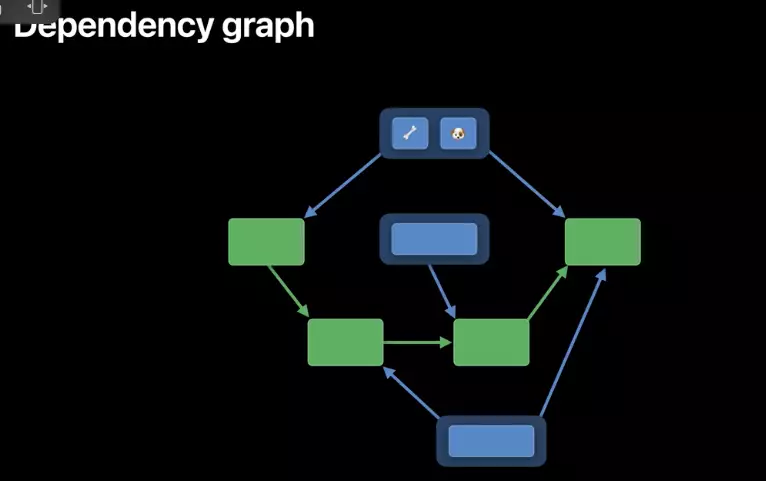
What Is the AttributeGraph?
Think of a spreadsheet.
- Cell A1 =
5 - Cell A2 =
10 - Cell A3 =
= A1 + A2
You change A1 to 7. Excel doesn’t recalculate every cell in the sheet. It knows A3 depends on A1, so it recalculates only A3. A2 is untouched.
The AttributeGraph works the same way. It’s a directed graph made up of:
- Nodes (called attributes) — each one stores a specific piece of information. A
@Statevalue. A custom view. SwiftUI views like VStack, Text and Button. - Edges (called dependencies) — connections between nodes that say “this node reads from that node.”
When a state node’s value changes, the graph walks down through the edges and marks every dependent node as dirty — meaning it needs to be recalculated. Nodes that don’t depend on the changed value are never touched.
That’s the entire update engine.
Your View Struct Is Not the UI
This is the most important mental shift coming from UIKit.
In UIKit, your UIViewController is the thing. It holds the data. It holds the views. It has a lifecycle. You create it, you configure it, it lives, it dies.
In SwiftUI, your view struct is a description. A blueprint. SwiftUI reads it, extracts the information, feeds it into the AttributeGraph, and throws the struct away.
struct CounterView: View {
    @State var count = 0

    var body: some View {
        VStack {
            Text("(count)")
            Button("+1") { count += 1 }
        }
    }
}When SwiftUI processes this, the graph ends up looking roughly like this:
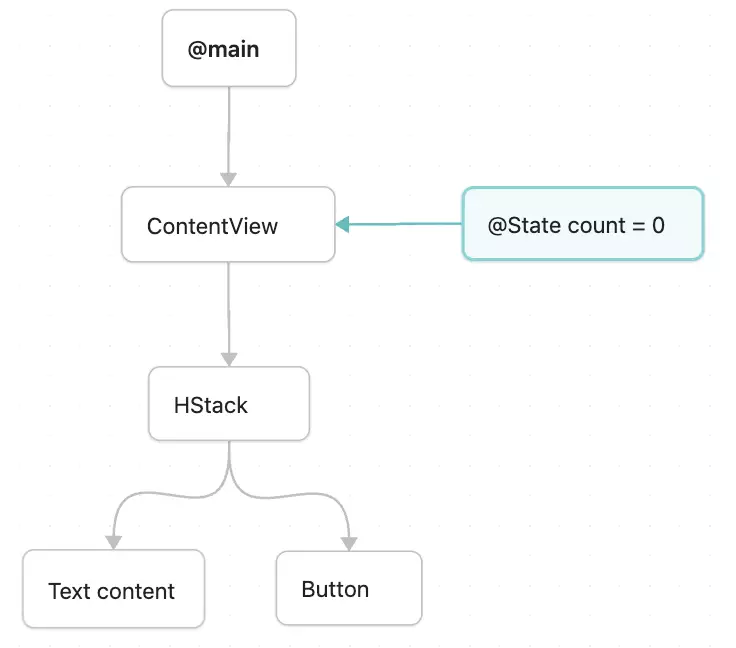
Each box is an attribute. Each arrow is a dependency. When count changes:
- The
countattribute is marked dirty - All nodes that depend on count are marked as dirty (an edge/dependency from the state to):
ContentViewis marked dirty CounterView.bodyis called and compared (diff) against the old valueTextdepends onbody‘s output → the system notes the changeButton— did its inputs change? No → skipped- During the commit phase the acutual changes are passed to the underlying UIKit components: here a UILabel get a new text.
The view is used to create and update the underlying UI.
Where @State Actually Lives
When you write:
@State private var name = ""@State is a property wrapper. Inside it, there’s a reference — Apple calls it a _location — that points to an attribute in the graph. The actual value lives there. I highlighted the state attribute as blue in the above infographic.
Here’s what happens step by step when SwiftUI encounters your view for the first time:
1. Parent's body runs and mentions YourView(...)

2. SwiftUI calls YourView.init()
   → A temporary struct is created on the stack
   → @State property contains State<String>(initialValue: "")
   → This is just a DESCRIPTION — no storage yet

3. SwiftUI checks the view's position in the tree (Structural Identity)
   → "Have I seen a view at this position before?"

4. First time → NO
   → Allocate a new attribute in the graph
   → Store the initial value ""
   → Connect the @State handle to this attribute

5. SwiftUI calls body on the struct
   → body READS name
   → Graph records a dependency: "body depends on name"

6. SwiftUI throws away the struct
   → The struct is gone
   → The attribute in the graph remains
The struct is disposable. The state attribute in the graph is the source of truth.
Single Source of Truth: A Graph Topology
You’ve heard this phrase a hundred times. Here’s what it means in terms of the graph.
The Problem: Two @State = Two Attributes
struct ParentView: View {
    @State var count = 0

    var body: some View {
        VStack {
            Button("+1") { count += 1 }
            ChildView(name: "Updated: (count)")
        }
    }
}

struct ChildView: View {
    @State var name: String

    var body: some View {
        Text(name) // Always shows "Updated: 0"
    }
}This creates two attributes in the graph, which i colored in blue:
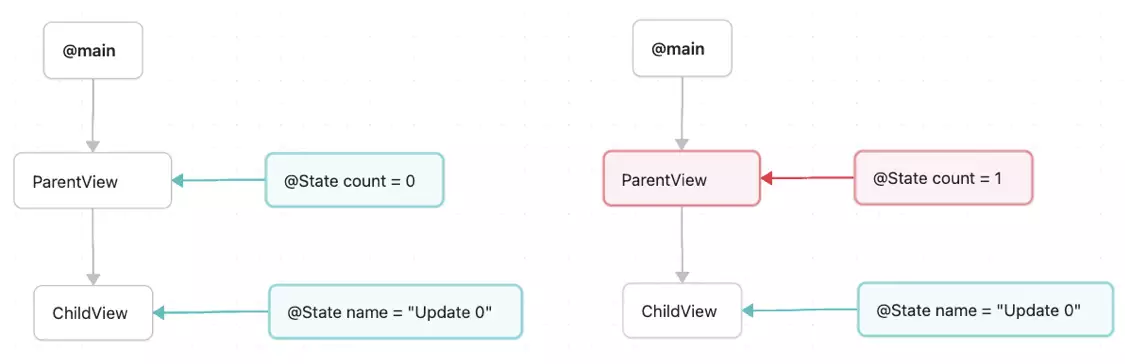
The user taps the button. Only ParentView.count updates. ChildView.name is still "Update 0". They have drifted apart. There is no edge connecting them for ongoing sync — the value was copied once at init and that’s it.
The Fix: One @State + @Binding = One Attribute
struct ParentView: View {
    @State var count = 0

    var body: some View {
        VStack {
            Button("+1") { count += 1 }
            ChildView(name: "Updated: (count)")
        }
    }
}

struct ChildView: View {
    let name: String

    var body: some View {
        Text(name)
    }
}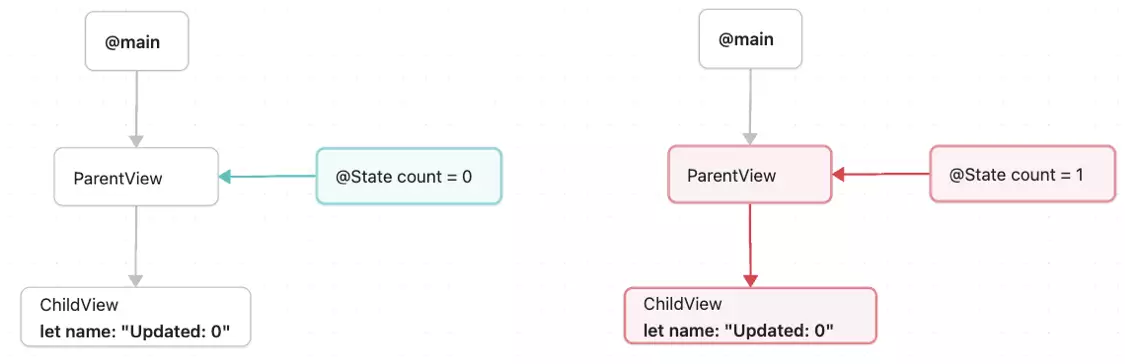
There is only one @State declaration which SwiftUI interprets and creates one attribute for in the AttriibuteGraph. This one single source of truth that both ParentView and ChildView will reflect.
Dependencies: How the Graph Knows What to Update
When your view is first time added to the view hierarchy, the system needs to add the edges/dependencies. The are differnt ways/styles that determine the rules.
First lets look at value types with @State and @Binding:
struct MyView: View {
    @State var name = ""       // @state create a node and the edge/dependency
    @Binding var name: String  // no edge, the updates are discovered during view tree walking
    let age: Int               // no edge, the updates are discovered during view tree walking

    var body: some View {
        Text(name) // body reads `name` but NOT `age`
    }
}Similarly for ObservableObject:
struct ParentView: View {
    @StateObject var myObject = MyObject()           // @StateObject create a node and the edge/dependency
    @StateObject var otherObject = OtherObject()     // @StateObject create a node and the edge/dependency
    var body: some View {
        MyView(myObject: myObject, otherObject: otherObject)
    }
}

struct MyView: View {
    @ObservedObject var myObject: MyObject          // edge to existing node
    var otherObject: OtherObject                    // no edge, changes to this object will not be tracked

    var body: some View {
        Text(myObject.name)
        Text(otherObject.count)
    }
}@StateObject tells the graph: “Allocate a persistent attribute for this object and keep it alive as long as this view’s identity exists.” Same rules as @State — created once, survives struct recreation, destroyed when identity is removed.
SwiftUI sees the property wrappers and creates the edges in the AttributeGraph, which basically says “when any property in the ObservableObject changes, check these views for updates”. Note that without these property wrappers the graph has no pointer/edge and does not know to update this view.
For Observable feature the rules are different. The edges are created towards the single properties in the Obervable and are set if they are accessed in the view:
struct ParentView: View {
    @State var myObject = MyObject()    // @StateObject create a node
    var body: some View {
        MyView(myObject: myObject)     // no edge for dependency tracking,
                                       // because the body does not access any property
    }
}

struct MyView: View {
    var myObject: MyObject

    var body: some View {
        Text(myObject.name)    // read access -> edge to node "myObject.name"
    }
}When using the new SwiftUI instrument feature, you will see the dependencies from the AttributeGraph. I gives you the `transactions` a list of state changes that is processed in batch per update frame. Then in blue the @State attributes and the edge/dependencies that are used from the AttributedGraph. It gives a lot of details like what views are further evaluatd and what SwiftUI views are updated e.g. Text views content. It basically shows you a part of the AttributeGraph and what state caused the upate and what views depend on it:
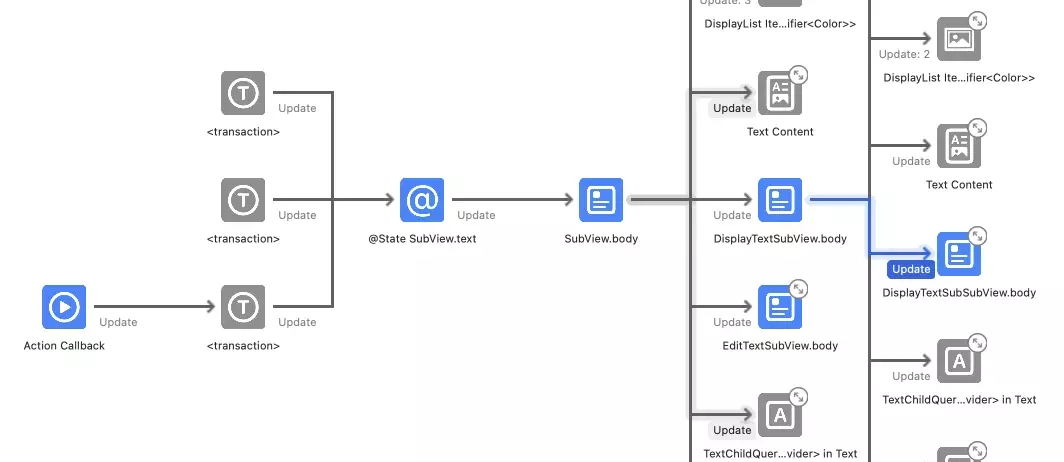
In this example, I am not only updating the view that directly depends on the state which is SubView, but also other views that recieve data from there parent views. SwiftUI is bacially “walking the tree” from top to botttom, which is also why the data flow is top to bottom from parent to child. But that is a different blog post on its own (when body is called, diff, and inits).
When Does State Die?
In UIKit, you know exactly when data dies — deinit. You see it. You control it.
In SwiftUI there’s no deinit on your view struct (it’s a value type — it just pops off the stack). So when does the graph clean up?
When the view’s identity is removed from the tree.
struct ParentView: View {
    @State var showChild = true

    var body: some View {
        VStack {
            Toggle("Show", isOn: $showChild)
            if showChild {
                ChildView()
            }
        }
    }
}

struct ChildView: View {
    @State var count = 0

    var body: some View {
        Button("Count: (count)") { count += 1 }
    }
}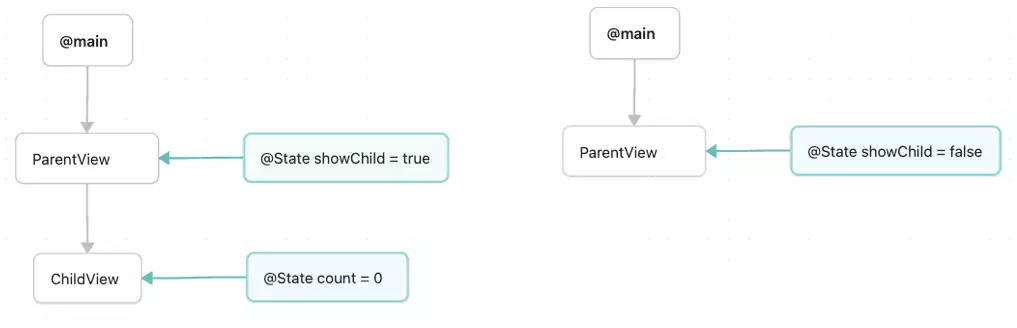
showChildistrue.ChildViewappears. The graph creates an attribute forcountwith value0.- You tap the button a few times.
countis now5. - Toggle
showChildtofalse. Theifbranch removesChildViewfrom the tree. - SwiftUI sees that
ChildView‘s identity is gone → destroys all its attributes.countis gone. - Toggle
showChildback totrue.ChildViewappears again. The graph creates a new attribute forcountwith value0.
The old count = 5 is gone forever. This is your deinit — not on the struct, but on the identity in the graph.
Identity: How the Graph Knows “Which” View You Mean
The graph needs a way to match your view struct to the right attribute. It does this through Identity.
There are two kinds:
Structural Identity
This is the default. SwiftUI uses your view’s position in the code to identify it.
var body: some View {
    VStack {
        Text("Hello")   // ← identity: VStack/child-0
        Text("World")   // ← identity: VStack/child-1
    }
}Each Text has a different identity because it’s at a different position in the VStack. SwiftUI uses this position as the key to look up attributes in the graph.
This is also why if/else branches create different identities:
var body: some View {
    if isLoggedIn {
        HomeView()      // ← identity: if-true-branch
    } else {
        LoginView()     // ← identity: if-false-branch
    }
}HomeView and LoginView have completely different identities. They have completely different attributes in the graph. When isLoggedIn flips from false to true, the graph destroys all attributes for LoginView and creates new ones for HomeView.
Explicit Identity
You provide this with .id() or ForEach.
ForEach(items, id: \.id) { item in
    RowView(item: item)
}Each RowView is identified by item.id. If you remove an item from the array, the graph destroys the attributes for that identity. If you add a new item, new attributes are created.
And here’s the power move:
ChildView()
.id(someValue)When someValue changes, SwiftUI treats this as a completely new view. The old attributes are destroyed. New ones are created with fresh initial values. This is your manual “reset state” button.
The Update Cycle: Putting It All Together
Here’s the full picture of what happens when you change a @State value:
1. You set count = 5
   → The @State handle writes to its attribute in the graph

2. The attribute marks itself as DIRTY

3. The graph walks DOWN through dependency edges
   → Every attribute that depends on `count` is marked dirty

4. SwiftUI schedules a re-evaluation (batched — not immediate)

5. On the next render pass, SwiftUI visits each dirty attribute
   → Calls body on views whose body attribute is dirty (starts in the highest node in the attribute graph, closest to @main)
   → body returns new view descriptions
   → diffing: compares old and new values to decide whats changed
   → markes custom views as invalide if there input changed
   → continuesly calls  body for invalidated subviews

6. Commit phase: changes are passed to the underlying rendering engine

7. Next frame: UI shows new display for updated state
This is why SwiftUI is fast. It doesn’t re-evaluate your entire view tree. It follows the dependency edges from the changed node downward and only touches what’s necessary. When it calls a body, it means it checks if it needs updating and only when it finds changes these are actually implemented. The whole system is very complex and Apple engineers have been working constantly on improving the reliability and performance of the system.
The UIKit ↔ SwiftUI Translation Table
| Concept | UIKit | SwiftUI |
|---|---|---|
| Where data lives | In your objects | In the AttributeGraph |
| Who creates UI | You (addSubview, NSLayoutConstraint) | The graph (from your body description) |
| Who updates UI | You (label.text = ...) | The graph (dependency tracking) |
| When data is created | init / viewDidLoad | First time identity appears in tree |
| When data dies | deinit | Identity removed from tree |
| How updates propagate | You call methods manually | Graph walks dependency edges automatically |
| What your code is | The engine | A blueprint |
Practical Implications
Everything above leads to a set of rules that aren’t suggestions — they’re consequences of how the graph works:
Don’t use
@Statefor data passed from a parent. The graph allocates the attribute once and ignores future init values. Use@Bindingor just aletconstant.Don’t sync two
@Stateproperties manually. Two@State= two attributes. Use one@Stateand pass@Bindingreferences down.Put your source of truth as low as possible, but high enough so that all views can access it. When an attribute changes, every dependent below it might be re-evaluated. If your
@Stateis at the root, a change can cause many updated down the entire tree.@StateObjectfor objects you create.@ObservedObjectfor objects you receive. This maps directly to whether the graph allocates storage or just watches.init()is not your setup point. It runs every time the parent re-evaluates. The graph decides whether to use your initial values or ignore them.
Your view struct is the top layer. The graph is the middle layer. The screen is the output. You write the top layer. The graph does the rest.
When something doesn’t behave the way you expect, the answer is almost always in the middle layer: which attribute exists, what it’s connected to, and whether its identity is still in the graph.